

HDD to SSD Upgrade
A hard drive has a disc spinning inside it. An SSD has no moving parts at all. That one difference is what makes an old computer feel new again.
- Laptops, desktops, iMacs
- Everything copied across
- 6–12 month warranty
What Actually Makes It Slow
Not how fast the drive reads. How long you wait before it starts.
The disc turns 5,400 times a minute. On average you wait half a turn – about five thousandths of a second – for the right part to come round. Then the arm still has to move there.
Nothing spins and nothing moves, so there is nothing to wait for. Roughly fifty times less waiting, and the same wherever the file happens to be.
The bars are drawn to scale. Your computer does this thousands of times just to open one program, which is where the waiting adds up.
Is the Drive Really the Problem?
Two minutes and no tools. While the computer is being slow, open Task Manager on Windows (Ctrl+Shift+Esc) or Activity Monitor on a Mac.
- Disk near 100%, processor lowIt is the drive holding you up. This is exactly what an SSD fixes.
- Memory is full as wellAdd memory first. It usually costs less and helps more.
- Clicking or ticking noisesThe drive is failing, not just slow. Get your files off it before anything else.
- Everything looks normalSomething else is slowing it down. Start with what loads when you switch on.
What Gets Faster, and What Doesn’t
An SSD helps most when the computer has to go and find something.
You Will Notice
- Switching the computer on
- Opening a program for the first time
- Going back to something left open
- Searching through your files
You Won’t
- Copying one very large file
- Watching video
- Anything already open on screen
- Work the processor is busy with
Better to know that before you buy than after.
How Fast Each Type Can Go
These are the limits of the socket the drive plugs into. Published figures, not our own tests.
Megabytes per second. The hard drive is held back by the spinning disc itself; the rest by the socket they plug into. Going from a hard drive to any SSD is the big jump. The gaps between the SSDs are small next to it.
Hard Drives Fail Less Often Than You’re Told
That is how many failed in a year, out of 344,196 drives. Not the one in four that upgrade pages like to quote.
Those drives sit still in a data centre, though. Yours gets carried around, which is harder on anything with moving parts – and when a drive does fail, it usually gives no warning at all.
Backblaze Drive Stats 2025Which Drive Fits Your Computer
Your computer decides this, not your budget. We check before we quote.
SATA SSD
- Fits
- Any computer with a drive bay
- Limit
- 550 MB/s
The usual answer for older laptops and desktops. If your computer still has a hard drive, this alone is a big step up.
NVMe Drive
- Fits
- A small slot on the motherboard, roughly 2015 onwards
- Limit
- 3,500–7,000 MB/s
Worth paying for if you edit video or work with very large files. For email, web and documents you will not feel the difference.
External SSD
- Fits
- Any computer with the right socket
- Limit
- About 1,000 MB/s
For computers where the drive is soldered in and cannot be changed – most recent MacBooks and thin laptops.
What We Actually Do
Most of the time goes on moving your files. Fitting the drive is the quick part.
- Check it is worth doingWhich drive fits, whether your old one can still be read safely, and whether the rest of the computer deserves the money.
- Copy everything across, or start freshA copy gives you back the same computer, only faster, with your files and programs where you left them. A fresh start is cleaner but you set things up again. We say which suits.
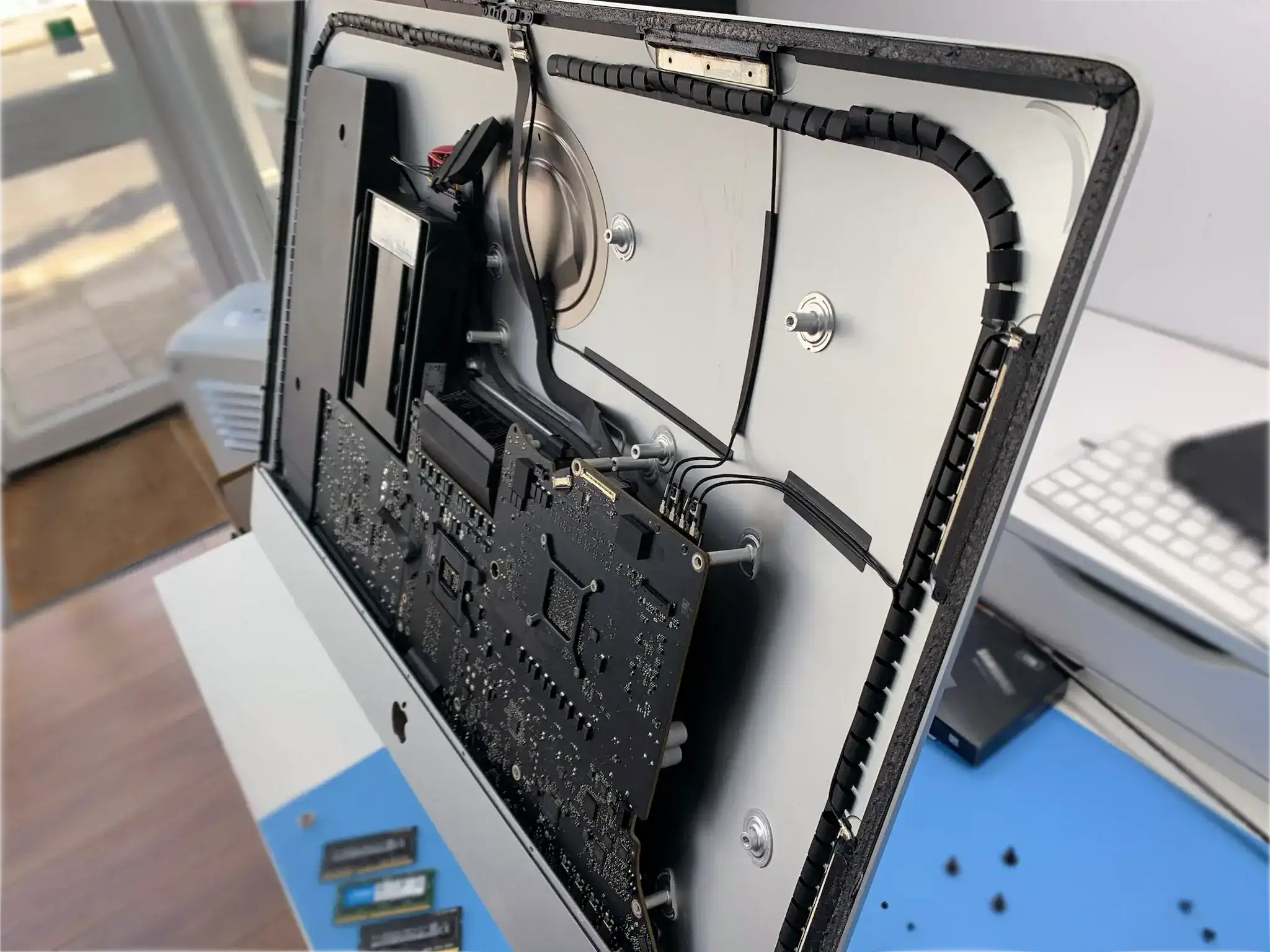
- Fit the new driveQuick on most laptops and desktops. Longer on iMacs and very thin laptops, and quoted that way from the start.
- Set it up so it stays fastAn SSD needs a few settings switched on to keep its speed over the years. We do that, then test the computer properly rather than just turning it on once.
- You keep the old driveWiped clean, put in a case so it becomes a backup disk, or left exactly as it is. Either way it goes home with you.
When We’ll Tell You Not to Bother
We would rather say that before the work than take your money.
SSDs Have Got More Expensive
The memory chips inside every SSD went into short supply through 2025, because the factories moved production to drives for AI data centres. Prices went up and have stayed up.
So a quote today may be higher than the price you remember. That is the market, not us. Buy the size you will still be happy with in two years.
Why memory prices rose →Common Questions
Will I lose my files?
No. We copy everything onto the new drive, and your old drive goes home with you untouched, so there are two copies. Back up first anyway – it costs nothing and it matters the one time it does.
What does it cost?
It depends on your computer, the size of drive you want, and whether we copy everything across. Tell us the model and you get a price before we open anything.
How long will it take?
Fitting the drive is quick. Copying your files is what takes the time, and that depends on how much you have. Most jobs are done the same day or the next.
Can any computer be upgraded?
Most, as long as the drive can be removed. On many recent MacBooks and thin laptops the drive is soldered to the board and cannot come out – those take an external SSD instead.
Should I upgrade or just buy a new computer?
If the drive is the only thing wrong, upgrade – it is far cheaper. If the battery is finished, the memory is short and it can no longer take updates, you are propping it up rather than fixing it.
Which type of SSD do I need?
Whichever your computer takes – that is decided by the hardware. Where both fit, the faster type is worth it for video and large files, and hard to notice for everything else.
What happens to my old drive?
You keep it. We can wipe it, put it in a case so it works as a backup disk, or leave it as it is. Your choice.
How long will the new drive last?
SSDs are rated by how much you write to them over their life, not by years. Normal use does not come close to that, so it will almost certainly outlast the computer.
What warranty do I get?
Six to twelve months on our work, depending on the job, plus the drive maker’s own warranty – usually three to five years. Both are written on your paperwork before you pay.
My drive is making noises. Should I still upgrade?
Not yet. Copying reads every part of the drive, which is exactly what finishes off a failing one. Getting your files off comes first.
Tell Us What You Have
The make and model, how full the drive is, and what Task Manager showed.