The USB-C connector looks identical on every cable — but what’s inside varies enormously, and that determines whether your device charges quickly, transfers files at speed, or drives an external monitor at all.
You buy a USB-C cable. You plug it into your laptop. It charges — but noticeably more slowly than you expected. You try a different cable, same shape, same colour, and suddenly it charges at the speed the box promised. You have no idea why.
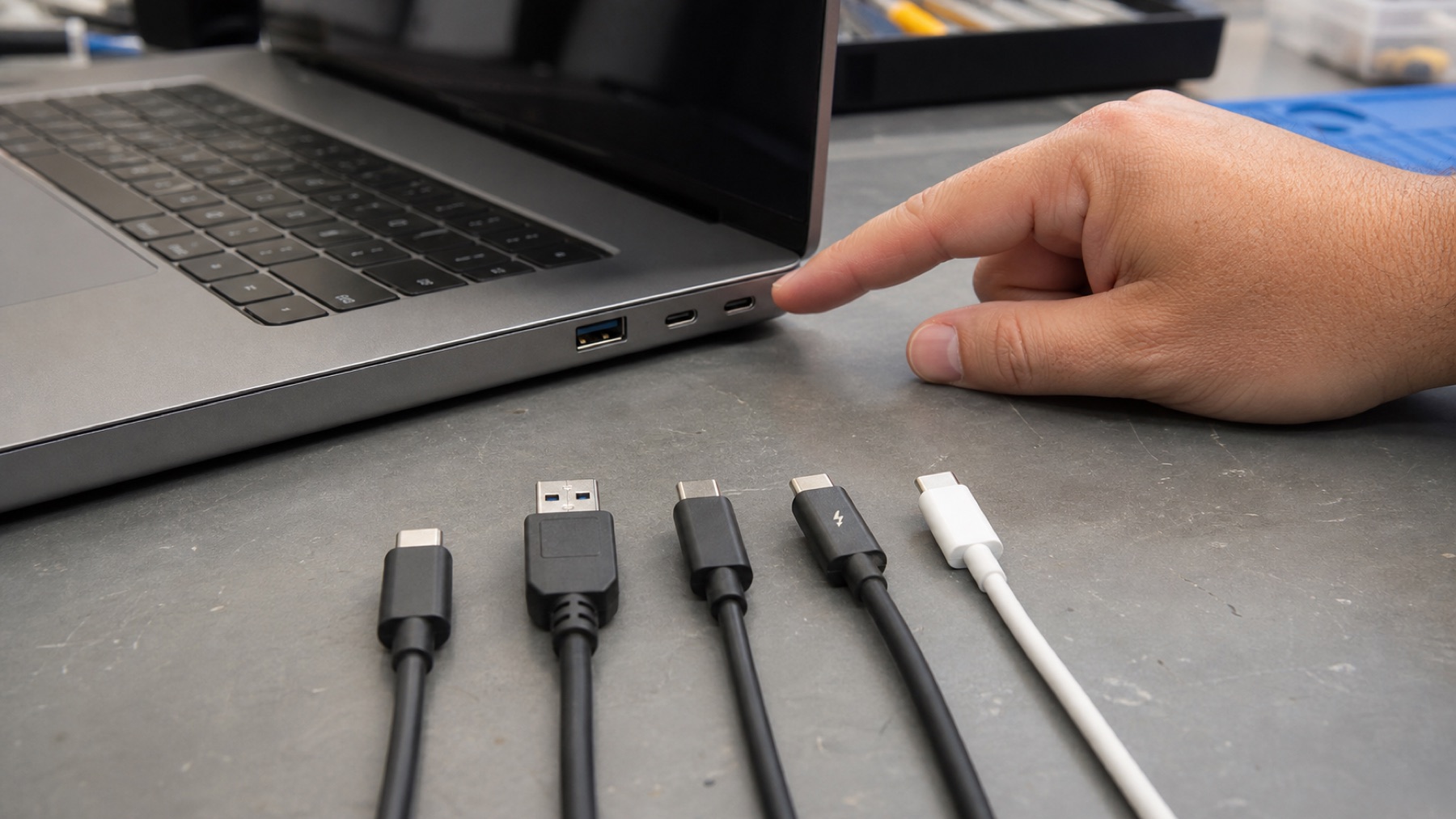
Or: you try connecting your laptop to an external monitor with a USB-C cable. Nothing happens. A different cable from the same drawer produces the same result. A colleague lends you their cable — the one with a tiny lightning bolt printed on the plug — and it works immediately.
Or: you get an iPhone 15 and discover that the USB-C cable bundled with your Android phone charges it fine, but transferring video footage to your computer takes twice as long as it should.
All of these situations have the same cause. USB-C is not a standard. It is a shape.
The connector and the standard are not the same thing
This is the core of the confusion, and it is worth being clear about it. USB-C refers to the physical connector — the oval, reversible plug that replaced Micro-USB, Mini-USB, and USB-A on most modern phones, tablets, and laptops. It was designed to be universal: one connector type that works with everything.
The problem is that “one connector” does not mean “one capability”. The USB-C connector is used across a wide range of different underlying standards, each with different speeds, power limits, and features. A cable with USB-C connectors at both ends might be built around USB 2.0 technology from the late 1990s, or Thunderbolt 4 technology that transfers data 83 times faster. From the outside, you cannot tell the difference by looking at the plug.
Think of it like a road. A motorway and a single-track country lane both have tarmac and white lines. The surface looks similar. But what you can actually move through them — and how quickly — is completely different. USB-C standardised the shape of the plug. It did not standardise what the cable can carry.
The standards that share the USB-C connector
There are several USB versions in common use, each with meaningfully different performance despite sharing the same physical connector:
| Standard | Max data speed | Charging | Video output |
|---|---|---|---|
| USB 2.0 | 480 Mbps | Basic (up to ~15W) | No |
| USB 3.2 Gen 1 | 5 Gbps | USB PD supported | Sometimes |
| USB 3.2 Gen 2 | 10 Gbps | USB PD supported | Sometimes |
| USB4 Gen 2×2 | 20 Gbps | USB PD up to 240W | Yes |
| USB4 Gen 3×2 | 40 Gbps | USB PD up to 240W | Yes |
| Thunderbolt 4 | 40 Gbps | USB PD up to 100W | Yes (up to 2× 4K) |
The vast majority of cheap USB-C cables — the ones bundled with budget accessories, sold at supermarket checkouts, or bought in multi-packs online — use USB 2.0. They will charge your device and transfer small files. But if you are trying to do anything that requires speed or video output, they are not going to deliver it, regardless of how much you paid for the charger.
Why charging speed depends on more than the cable
Most people know USB-C can charge faster than the old Micro-USB. What is less obvious is that fast charging is not something the cable alone controls — it is the result of three things working together: the cable, the charger, and the device.
The cable needs to support USB Power Delivery (USB PD) — the protocol that allows a charger and device to negotiate higher voltages and currents. A basic USB 2.0 cable will charge your phone, but at around 5 watts, which is roughly the same speed as a standard wall charger from several years ago. A USB PD cable unlocks charging at 18W, 30W, 65W, or higher, depending on what both the charger and device are capable of.
The charger also needs to support USB PD and output enough wattage. Even a USB PD cable cannot fast-charge through a basic 5W charger. And the device itself sets the ceiling — a phone that supports 25W fast charging will not charge faster than 25W regardless of what the cable and charger can theoretically deliver.
Fast charging is a negotiation. The cable, charger, and device all have to support the same protocol, and the actual charging speed is limited by whichever of the three is most constrained. If any one of them only supports basic USB 2.0 power, the whole conversation drops to that level.
There is one more complication for higher-powered devices. Cables rated above 60W need to contain an E-Marker chip — a small identifier embedded inside the USB-C connector that tells the charger how much current the cable can safely carry. Without it, the charger limits power delivery for safety. A charger rated at 100W paired with a cable that lacks an E-Marker will deliver considerably less than that. The cable packaging should state the wattage rating; if it does not, assume the cable cannot handle high-power charging.
Why some USB-C ports do video output and others do not
This is the situation that generates the most frustration, partly because the behaviour seems completely arbitrary. Two USB-C ports on the same laptop can look identical, but only one works with a monitor. Or a phone can connect to a TV through USB-C and a friend’s seemingly identical phone cannot.
The feature behind this is called Alternate Mode. In addition to carrying USB data, a USB-C port can be configured to carry other types of signal — specifically DisplayPort or HDMI for video. This is optional, and device manufacturers decide whether to include it for each port.
Thunderbolt ports always support video output — it is part of the Thunderbolt specification. They are usually marked with a small lightning bolt symbol next to the port. USB 3.x ports with DisplayPort Alternate Mode support it too, but not all of them do, and the only reliable way to know is to check the device specifications.
If you plug a USB-C cable into a port without Alternate Mode and connect the other end to a monitor, nothing will happen — not because the cable is wrong, but because the port simply does not have the hardware capability to carry a video signal. No cable or adapter will change that.
The iPhone situation
From iPhone 15 onwards, Apple moved from Lightning to USB-C. In theory this means iPhone users can share cables with their Android phones, tablets, and laptops. In practice, there is a catch.
The standard iPhone 15 and iPhone 16 models include USB 2.0 in their USB-C port. That means data transfer speeds are roughly equivalent to what Lightning offered — adequate for photos and music, but slow for large video files. The Pro and Pro Max models include USB 3 speeds, which are meaningfully faster.
For charging, this distinction does not matter much: all iPhone 15 and 16 models support USB Power Delivery and will fast-charge with a compatible USB PD charger and cable, regardless of data speed. But if you are regularly moving large files — 4K video from a Pro Max, for example — the difference between a USB 2.0 and a USB 3 cable means the difference between a two-minute transfer and a twenty-minute one.
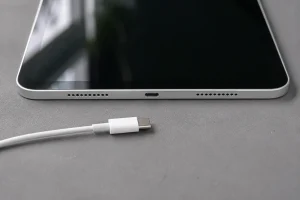
Both cables fit the port. The speeds are not the same.
How to tell what cable you actually have
This is genuinely difficult, because USB-C cables are often poorly labelled. Here is what to look for:
- A lightning bolt symbol on the connector: Thunderbolt 3 or 4. These cables support 40 Gbps data, USB PD charging, and video output. They are noticeably more expensive — typically £20 to £40 or more for a quality cable — but capable of everything.
- “SS” followed by a number on the connector or packaging: SS10 means USB 3.2 Gen 2 (10 Gbps). SS20 means USB 3.2 Gen 2×2 (20 Gbps). No number means the older 5 Gbps speed. A reasonable middle ground for most use cases.
- A wattage rating on the packaging: Any cable rated above 60W should contain an E-Marker chip. If the packaging states the wattage, the manufacturer has at least specified the cable properly. If there is no wattage stated, assume basic charging only.
- No markings at all: The most common situation with budget cables. If a USB-C cable has no specification labelling, assume USB 2.0 speeds and basic charging. It will work for everyday tasks but will not deliver fast data transfer or high-power charging.
A quick guide to what you actually need
| What you want to do | What the cable needs to support |
|---|---|
| Charge a phone quickly | Any USB PD cable — USB 2.0 with PD is perfectly fine for phones |
| Charge a laptop | USB PD cable rated to your laptop’s wattage; E-Marker required if above 60W |
| Connect to an external monitor | First check your device port supports Alternate Mode, then use a Thunderbolt or USB 3.x cable with DisplayPort Alt |
| Transfer large files quickly | USB 3.2 Gen 2 (10 Gbps) minimum; Thunderbolt if speed is critical |
| One cable for everything | Thunderbolt 4 — expensive, but genuinely handles every USB-C use case |
What about the port itself?
Everything above assumes the USB-C port on your device is in good working order. That assumption does not always hold.
USB-C ports are used dozens of times a day and take a lot of mechanical stress in the process. Cables go in at angles, in the dark, in a hurry. The connector inside the port is rated for around 10,000 insertion cycles under laboratory conditions — but real-world use adds wear from debris, drops, and cables being pulled sideways. Over time, ports loosen, develop intermittent connections, or separate from the circuit board entirely.
Waterproofing ratings add reassurance that does not always reflect everyday reality. A phone rated IP67 or IP68 has been tested under controlled conditions — clean fresh water, specific depths, short durations. The seals that protect the USB-C port degrade with age, and the port itself is exposed to more than clean water in normal use: sea water, sweat, condensation, bathroom humidity. Corrosion inside a USB-C port can build gradually over months, starting as an intermittent charging issue that gets dismissed as a cable problem. By the time the connection fails entirely, the damage has usually been there for a while.
Pocket lint is a more mundane but surprisingly common cause of USB-C charging problems. It compacts inside the port over time until the cable cannot seat properly, causing the device to either not register a connection at all or charge intermittently. This is sometimes fixable with careful cleaning — but the port can be damaged if the attempt is too aggressive or uses the wrong tool.
If you have ruled out the cable, the charger, and the USB standard as the cause of a problem, and the port itself has become unreliable or stopped working, that is a repair. The port needs to be inspected properly — and in most cases, replaced.
USB-C port not behaving as it should?
If the cable and charger check out, the problem is usually the port. We diagnose and repair USB-C ports on phones, tablets, and laptops — and always identify the root cause before recommending a fix.