If the iPad has been wet, the case is lifting or the port becomes hot, stop charging. Otherwise, test a known-good compatible charger and cable. Intermittent charging, a loose plug and no response at all call for different checks; none proves the port itself needs replacing.
All repair guides
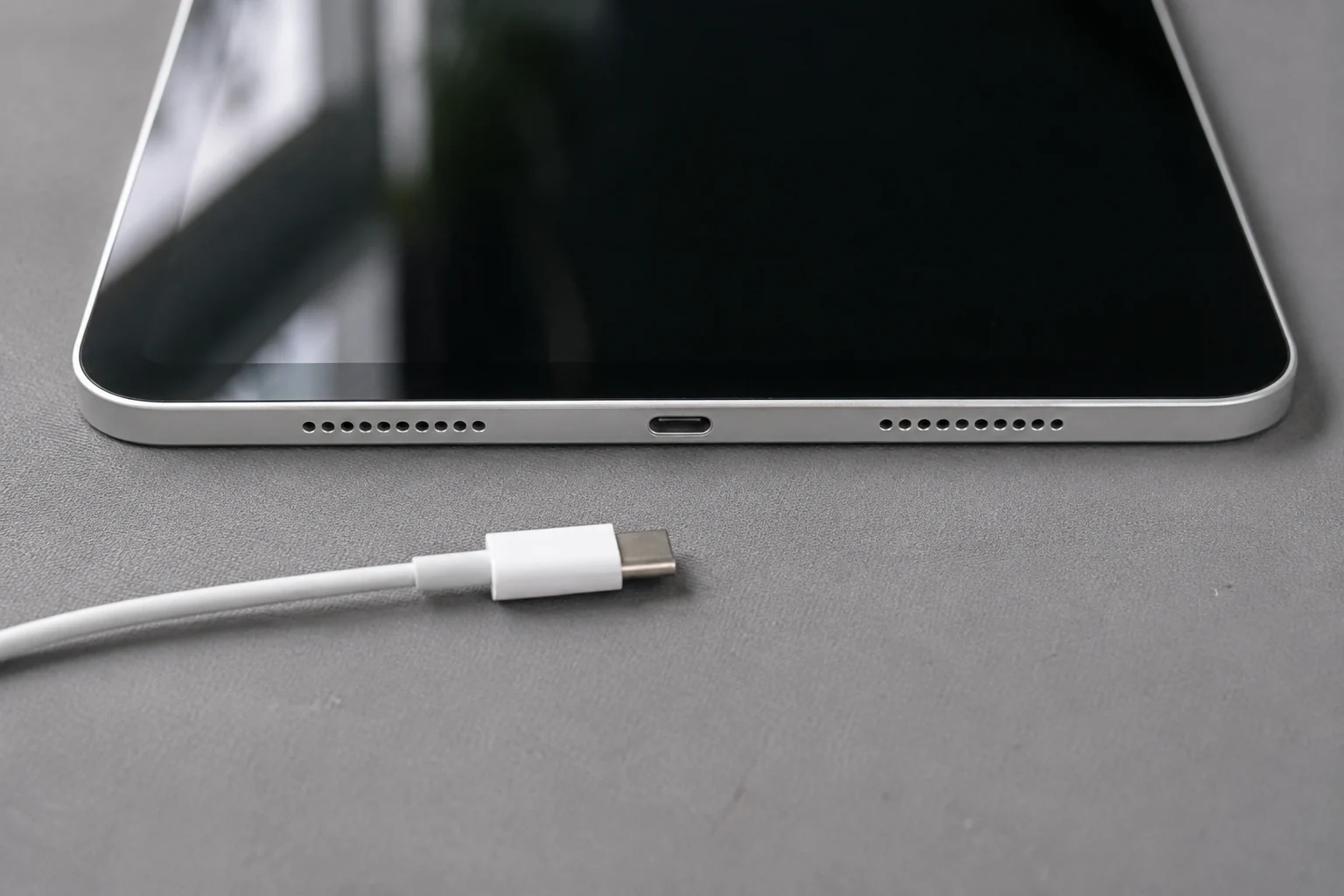

iPad Charging Port Not Working: Safe Checks Before Repair
In this article
First decide what “not charging” means
These symptoms are not interchangeable:
- there is no charging symbol and no response at all;
- the charging symbol appears, but the battery percentage does not rise;
- charging starts and stops when the cable moves;
- the iPad charges slowly or only while switched off;
- the computer sees the iPad, but the battery will not charge;
- the iPad may be running, but the display remains black.
Each points us towards a different part of the power path. A black screen can make a working iPad look completely dead, while a worn port can work for data but fail under charging load.
Safe checks you can do at home
- Try a known-good cable and suitable power adapter. Connect directly to a wall socket rather than through a keyboard, hub or computer for the first test.
- Leave it connected for at least 30 minutes. A deeply discharged battery may take time before the screen responds. Apple advises trying another cable or adapter and checking that the iPad is not too hot or cold.
- Force-restart it once. On an iPad without a Home button, press and release the volume button nearest the top button, press and release the other volume button, then hold the top button. On a Home-button model, hold Home and the top button together until the Apple logo appears.
- Inspect the port under good light. Look for a bent centre section, compacted debris, corrosion or a plug that does not sit squarely. Do not insert a pin, blade or screwdriver.
- Remove the case for the test. A damaged or poorly fitting case can prevent the cable from seating fully.
Do not keep reconnecting a wet or overheating port. Disconnect it and let a technician inspect the device. Power and moisture are a much worse combination than a flat battery.
Is it really the charging port?
| Symptom | What it may indicate |
|---|---|
| One cable feels loose, another fits normally | The cable plug may be worn or damaged. |
| Every cable sits loosely or only works at an angle | Debris, physical connector wear or broken internal connections. |
| Charging icon appears but the percentage falls during use | Insufficient adapter power, a weak battery or excessive power draw. |
| iPad is detected by a computer but does not charge properly | The port is not fully ruled out; data and charging use different parts of the connection. |
| No response after a known-good charger and force restart | Battery, display, port, power-management circuit or another board fault. |
The quickest route is not always to replace the port. We first need to establish whether power reaches the device, whether the battery accepts it and whether the display is giving a false “dead” symptom.
What an iPad charging-port repair can involve
iPad construction varies by generation. Depending on the model, the charging connector may be part of an assembly, connected by a flex, soldered or affected by damage on the motherboard. Access normally involves lifting the bonded display, which is one reason a proper model check matters before quoting.
Under magnification we look for damaged contacts, movement, corrosion and previous repair damage. We then check power intake and the battery before deciding whether the connector itself is the fault. If power reaches the board but does not move through the expected path, board-level diagnosis may be required.
Our take: “replace the port” is a guess until the cable, adapter, battery and board have been separated. We would rather diagnose the power path once than replace the obvious-looking part and return the iPad with the same fault.
Protect the data before software troubleshooting
If the iPad contains important files that are not backed up, say so before anyone suggests a restore. Apple distinguishes an update from a factory restore: a restore reinstalls iPadOS and erases the device. A charging fault is not, by itself, a reason to erase user data.
If the iPad still switches on intermittently, use that opportunity to confirm the backup rather than repeatedly draining the battery. If it remains dead, avoid authorising board replacement until you know whether the data matters.
When to arrange a repair
Book an assessment when the connector is physically damaged, charging only works at an angle, several known-good accessories fail, the device becomes hot near the port, or the iPad remains unresponsive after charging and one force restart.
See our iPad repair service. If there is no sign of power at all, continue with iPad Won’t Turn On: Safe Checks Before Repair.
Frequently asked questions
Can I clean an iPad charging port myself?
You can inspect it under good light, but do not scrape it with a metal object or add liquid. Compacted debris and damaged contacts are easy to confuse, and forcing a tool inside can damage the connector.
Why does the cable only work at an angle?
The plug may not be seating fully, or the connector may be worn, loose or damaged. Treat the angle as a fault, not a long-term charging position.
Does wireless charging rule out a damaged port?
Most iPads do not support ordinary Qi wireless charging. Accessories that power an iPad through another connector or keyboard do not fully test the main charging port.
Will replacing the charging port erase the iPad?
A hardware repair should not normally erase the device. The risk to data changes if the motherboard or storage is damaged, or if someone performs a factory restore. Make your data priority clear at check-in.
Technical references: Apple Support on what to do when an iPad will not charge and the warning that an iPadOS Restore erases the device.