If the laptop has been wet, the case is lifting or the connector becomes unusually hot, stop charging. Otherwise, test a charger and cable rated for the model, without a dock. A USB-C plug fitting the socket does not establish that the charger or that particular port supports the required power.
All repair guides
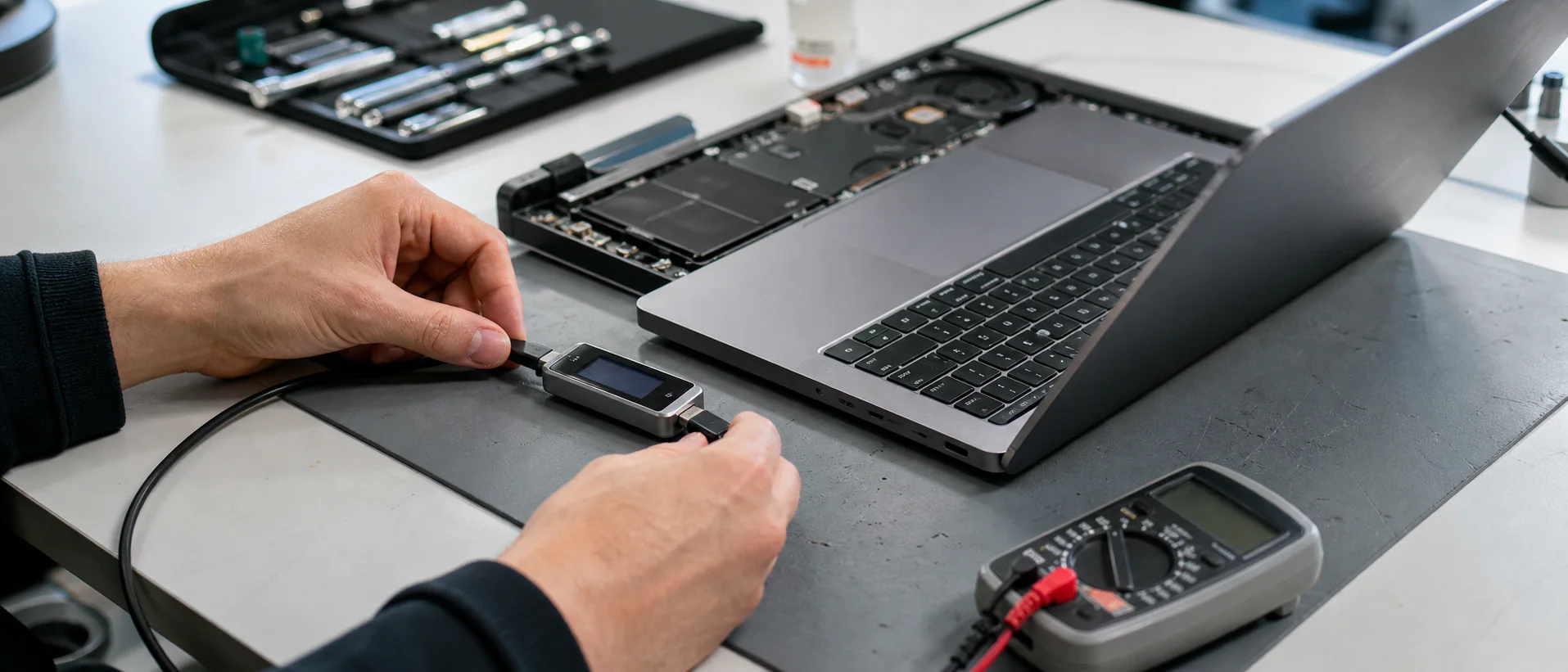

Laptop USB-C Port Not Charging: Cable, Port or Motherboard?
In this article
USB-C is the shape of the connector, not a promise
Two USB-C chargers can fit the same laptop and behave very differently. The laptop, charger and cable have to agree on a supported power level before higher-power charging begins. A phone charger may fit but provide too little power. A cable intended mainly for data may not be suitable for charging a laptop. A dock can also use part of the available power before it reaches the computer.
This is why “the charger works with my phone” does not clear the charger, cable or dock. Dell makes the same distinction in its current guidance: connector compatibility alone does not prove that the adapter supports the wattage and USB Power Delivery behaviour required by a particular laptop.
Five safe checks before booking a repair
- Connect the charger directly to a wall socket and the laptop. Remove the dock, monitor, travel hub and extension from the test.
- Use a charger and cable known to support the laptop. Ideally use the original set or a compatible replacement with the required wattage. Test the charger and cable together rather than changing both conclusions after one test.
- Try another charging-capable USB-C port, if the model has one. Not every USB-C port on every laptop accepts charging, so check the model manual first.
- Shut the laptop down and leave it connected for at least 20 minutes. A deeply discharged battery may not respond immediately.
- Look into the port under good light. Check for a bent centre tongue, discolouration, compacted debris or a plug that sits visibly crooked. Do not scrape inside it with a pin or screwdriver.
Stop testing if the plug or port becomes hot, the charger repeatedly connects and disconnects, the port smells burnt, the charger LED goes out when connected, or the laptop has had liquid exposure. Repeatedly wiggling a loose plug can turn a port repair into damaged pads or tracks on the motherboard.
What the symptom can tell us
| What you notice | Possible direction |
|---|---|
| Charges with one cable but not another | Cable capability or damage is more likely than a laptop fault. |
| Charges directly but not through a dock | The dock, its power supply or power passed through to the laptop may be insufficient. |
| Only charges when the plug is held at an angle | Worn connector, broken solder joints or physical port damage. |
| Laptop runs from the charger but the battery stays at the same percentage | Battery health, charging settings, adapter identification or the battery-charging path. |
| No light, no fan and no response with a known-good charger | Port, input protection, a short circuit or another motherboard power fault. |
| USB-C works for data or a display but not charging | Power Delivery negotiation or the charging path can fail while other port functions remain available. |
These are diagnostic directions, not verdicts. A battery icon, LED or USB connection proves that one part of the path is working; it does not test the whole charging circuit.
How we diagnose a USB-C charging fault
At the bench, we do not start by ordering a motherboard. We first confirm a known-good power source and cable, inspect the connector under magnification and check whether the laptop negotiates the expected input. Where the design allows it, we test the battery and charging input separately.
If the external parts are good, the next stage is board-level diagnosis. Depending on the model, the USB-C connector may sit on a replaceable daughterboard or be soldered to the motherboard. The fault can also be further along the circuit: damaged input protection, a shorted component, failed power-control circuitry, corrosion or broken communication between the charger and laptop.
A replacement motherboard is not the default answer. When the board and the rest of the laptop are economically repairable, replacing a port or repairing the affected circuit can preserve the original machine, storage and setup. See how we approach motherboard repair versus replacement.
Our take: do not normalise a charging workaround
A laptop that “still charges if I bend the cable” is already faulty. Continuing to use it transfers mechanical force into the connector and board every day. The cheapest point to investigate is usually before the port tears away completely or heat damages the surrounding area.
The same applies to an underpowered setup. If the laptop warns that the adapter is not recognised, performs slowly while connected or loses charge under load, check the correct specification rather than buying another random USB-C cable.
When to book a repair
Arrange an assessment when a compatible charger has been ruled out, the port is loose or damaged, more than one charging-capable port has stopped working, or the laptop remains completely dead. If it has important files, tell us before authorising a reset, storage replacement or motherboard replacement.
Start with our laptop repair assessment, or read the safe checks for a laptop that will not turn on if the machine shows no signs of power at all.
Frequently asked questions
Can any USB-C charger charge a laptop?
No. The connector may fit, but the charger, cable and laptop still need compatible USB Power Delivery support and sufficient wattage. Check the laptop manufacturer’s specification.
Can a damaged USB-C port be replaced?
Often, yes. The repair route depends on the model and the damage. Some ports are on separate boards; others require microsoldering. Torn pads, liquid damage or a fault elsewhere in the charging circuit need more than a connector swap.
Why does my laptop say “plugged in” but not charge?
The adapter may be underpowered or not correctly identified, the battery may be full or managed by a charge limit, or the battery and charging circuit may have a fault. The message alone cannot separate those causes.
Will a USB-C charging repair erase my data?
A port or board repair should not normally require erasing storage. Back up anything important if the laptop still works, and state clearly that the files have priority before any repair begins.
Technical references: Dell guidance on adapter compatibility and wattage and the USB Type-C specification.