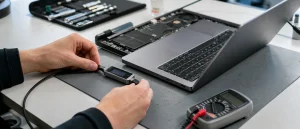
After a spill, swelling or unusual heat, stop charging and do not attempt another start. Otherwise, try a known-good charger suitable for the laptop and disconnect accessories. Note any lights, fan activity or response from the screen before arranging repair.
All repair guides
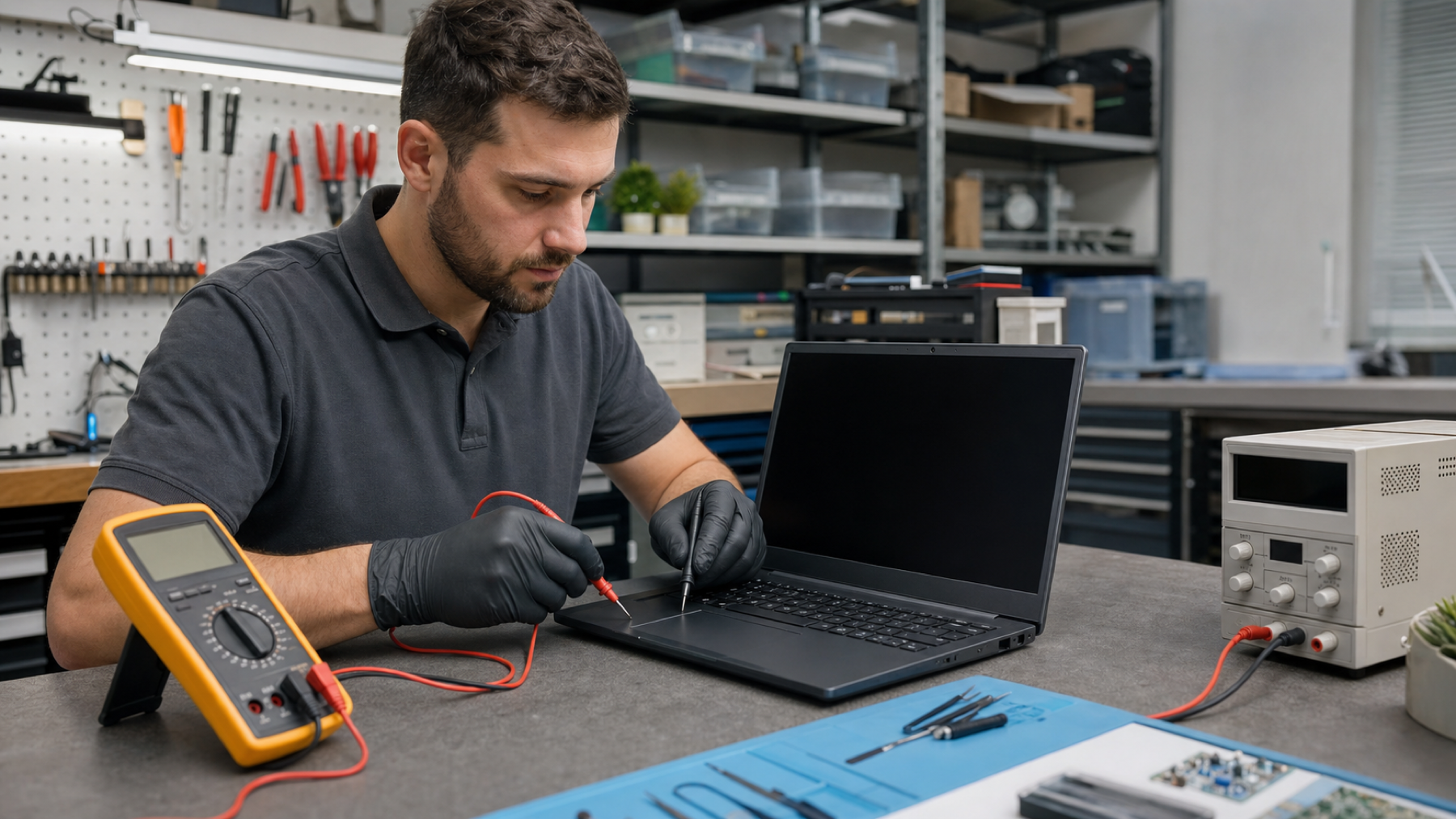

Laptop Won’t Turn On: Safe Checks Before Repair
In this article
Check the power source and charger
Connect the correct charger directly to a wall socket, bypassing extension leads and hubs. Check that the cable and connector are not damaged, bent or unusually hot. If you have access to a known-good compatible charger, test it once. Do not use an adapter with the wrong voltage or a damaged third-party cable simply because it fits.
Disconnect accessories
Remove USB devices, docks, external drives, memory cards and monitors. A faulty peripheral can prevent a laptop from starting correctly. Then try a normal start once. If it begins to power on, reconnect devices one at a time later to identify the trigger.
Look for signs of life
Watch for charging LEDs, keyboard lighting, fan movement, drive noise or warmth. A laptop with lights and fan activity but a black screen may be running with a display fault rather than failing to power on. If an external monitor is already available and the laptop supports it, it can help distinguish those possibilities.
Know when to stop testing
Stop immediately if there has been liquid damage, if the case is swollen, there is a burning smell, a port is charred or the device becomes unusually hot. Do not repeatedly try to boot a wet laptop. Do not remove the case unless you can safely isolate the battery and know the model’s internal layout.
Why a dead laptop may be repairable
The failure could be limited to a DC jack, USB-C power path, battery, keyboard power button, display cable or a small motherboard component. Professional testing measures where power is reaching and where it stops. That is more useful than replacing a battery or motherboard based only on a black screen.
What to bring to a diagnosis
Bring the laptop and its normal charger, and explain what happened before it stopped working: a drop, liquid spill, charging issue, update, heat or gradual decline. If your data is important, say so at the start. This helps the repairer choose a careful diagnostic route.
Frequently asked questions
My laptop lights up but the screen stays black. Is it really not turning on?
Not necessarily. Keyboard lights, fans or status LEDs can indicate that the laptop is running and the failure is in the screen, display cable or graphics path. An external display test can be useful where the model supports it.
Should I remove the battery to reset a dead laptop?
Only if the manufacturer provides a safe, documented procedure for your exact model. Many modern batteries are internal, and opening the case can create further risk. A careful diagnosis is safer when the cause is not obvious.
Can a laptop be repaired if it will not charge or start after a spill?
It may be repairable, but keep it switched off and disconnected. Liquid damage should be assessed before any charging attempt because powering a contaminated board can turn a contained issue into wider damage.
Send the model, signs of power and any spill history when arranging a laptop assessment.