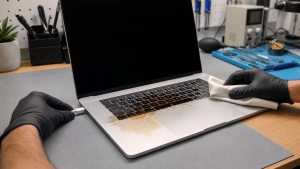
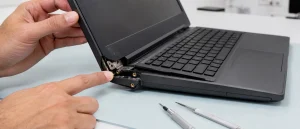
If the MacBook has been wet or the trackpad or case is lifting, stop using and charging it. Otherwise, restart once and compare the built-in keyboard or trackpad with a wired external device. Note whether the fault affects one key, an app or both input devices.
All repair guides
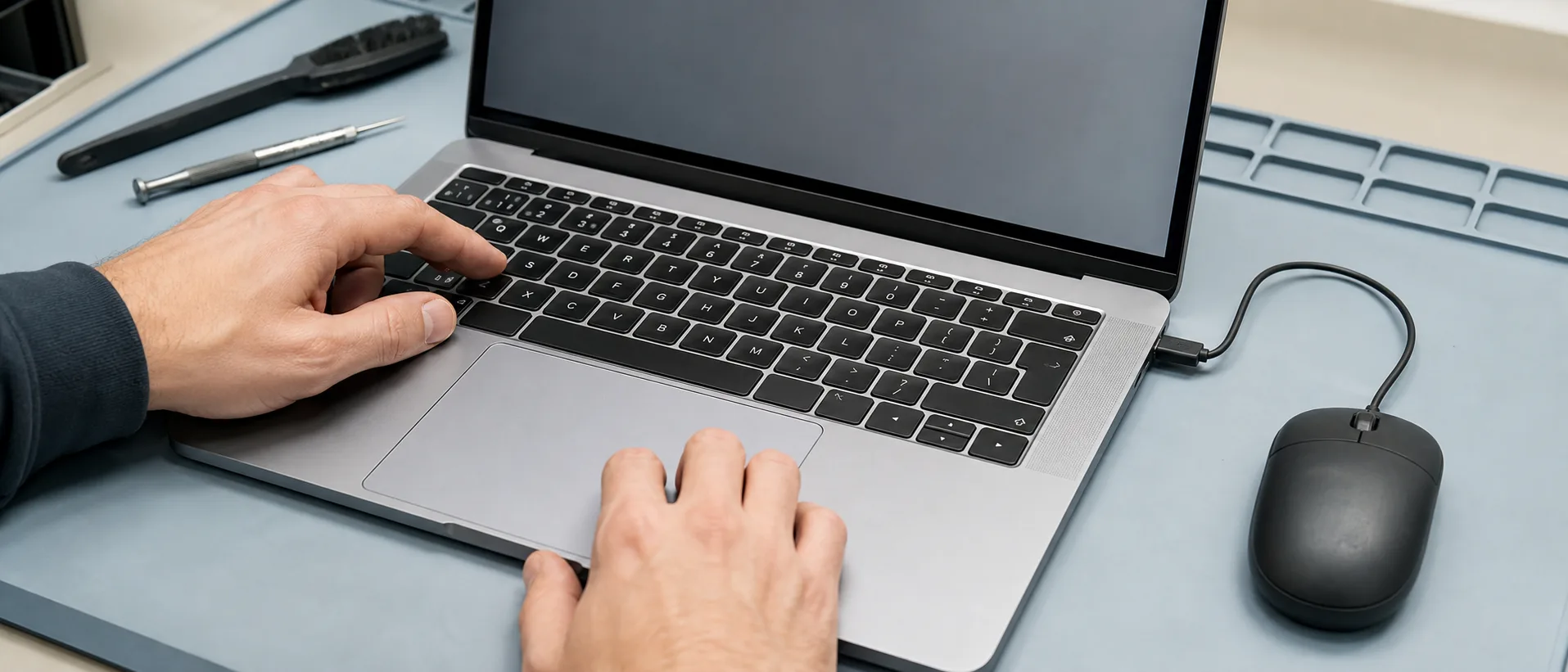

MacBook Keyboard and Trackpad Not Working: What Usually Fails?
In this article
First, identify exactly what stopped working
“The keyboard is broken” can describe several different faults. One key may repeat or feel different. A whole row may stop responding. The keyboard may work at login but not inside one app. The pointer may move while clicking does not, or both the built-in keyboard and trackpad may fail together.
Those details matter. A single sticky key and two dead built-in input devices do not share the same most likely cause. Before changing settings or ordering parts, note whether the fault started after a spill, a drop, a repair, a software update or a gradual change in the way the trackpad feels.
Safe checks before booking a repair
- Restart the MacBook once. A temporary software or input-service fault can clear after a normal restart. If the Mac is frozen, avoid repeatedly forcing it off unless there is no other way to recover control.
- Test another app and the login screen. If the problem exists in only one app, the hardware may be fine. If the same keys fail everywhere, a physical fault becomes more likely.
- Check the relevant accessibility settings. Slow Keys can make a normal key press seem ignored, while Mouse Keys changes how part of the keyboard controls the pointer. Apple lists both among the first checks for unexpected keyboard behaviour.
- Connect a known-good wired keyboard or mouse. If external devices work normally, macOS is still running and the fault is more likely to sit in the built-in input path. This narrows the diagnosis; it does not name the failed part.
- Look for a physical change. Check whether the trackpad is sitting proud of the case, the bottom cover has separated, or the click has become hard on one side. Do not press it flat.
Stop using the MacBook if the trackpad or case is lifting, the machine has had liquid exposure, you smell anything unusual, or it becomes hot around the battery area. A swollen battery can press against surrounding parts. Do not puncture it, compress the case or keep charging the MacBook to “see if it settles”.
What the symptom may point to
| What you notice | Useful diagnostic direction |
|---|---|
| One key feels sticky, repeats or does not travel normally | Debris, contamination or damage to that key mechanism is more likely than a logic-board fault. |
| Several keys in a row or group fail together | The keyboard matrix, connector, cable or top-case assembly may be involved. |
| The Force Touch trackpad does not produce its usual click while the Mac is off | This can be normal: the click sensation on Force Touch trackpads is generated electronically. |
| Trackpad is stiff, raised or the case no longer closes evenly | Battery swelling or physical distortion must be ruled out before further use. |
| Keyboard and trackpad fail, but external USB input works | The shared internal input path, cable, connectors, liquid damage or logic board needs diagnosis. |
| Fault appeared after a spill | Contamination may affect the keyboard, trackpad, connectors or board even if the MacBook still starts. |
A pattern helps us choose the next test, but it is not a parts list. MacBook construction changes between generations. On one model a cable can be replaced separately; on another the practical repair may involve the trackpad, keyboard, top case or board.
Can you clean a non-working MacBook key?
For a dry key that feels different, Apple publishes a compressed-air procedure for particular MacBook and MacBook Pro generations. It specifies the notebook angle, the direction of the air and keeping the supplied straw about 13 mm from the keyboard. Follow the current instructions for your model rather than blasting air vertically into the key.
Compressed air is not a liquid-damage treatment. Do not spray cleaning fluid beneath the keys, lever keycaps off without model-specific knowledge or keep pressing a key that feels mechanically jammed. The small clips and mechanisms vary, and a loose keycap can become a larger keyboard repair.
How we diagnose the fault
We start with the fault pattern and history, then test the built-in keyboard, trackpad and external input separately. If the case is distorted, battery safety comes first. If liquid is involved, we inspect connectors and the logic board for contamination rather than assuming the visible keyboard absorbed everything.
Where the model allows it, we check and reseat the relevant flex cables, inspect connectors under magnification and test with a known-good part before recommending a larger assembly. Apple’s own repair manuals separate keyboard, trackpad and cable troubleshooting and show how model-specific the parts route can be.
Board-level diagnosis is appropriate when the input assemblies and connections are good but the MacBook is not detecting them correctly, or when corrosion or electrical damage is visible. That does not mean every keyboard fault needs microsoldering. It means the board should be measured before it is condemned.
When to arrange a repair
Book an assessment when a restart and settings check do not help, an external device works while the built-in inputs do not, several keys fail together, the trackpad changes shape or feel, or the fault follows liquid or impact. If there are no signs of liquid damage, swelling or unusual heat and the MacBook works with external input, back up important files.
See our MacBook repair service, or keyboard replacement for the MacBook Air 13.6 (2022-2024), MacBook Pro 14 and MacBook Pro 16. For a spill, follow the immediate steps in Spilt Water or Coffee on a MacBook. If the trackpad or case is lifting, read our swollen laptop battery warning guide.
Frequently asked questions
Does an external keyboard working prove the logic board is fine?
No. It proves that the Mac can accept input through that external route. A separate controller, connector or circuit used by the built-in devices may still be faulty.
Will a keyboard or trackpad repair erase my files?
It should not normally require erasing the storage. Back up first when possible, and say clearly if the data is not backed up before authorising any wider board or storage work.
Technical references: Apple Support on keyboard settings and unresponsive keys, its MacBook keyboard cleaning procedure, and the model-specific MacBook Air repair manual.