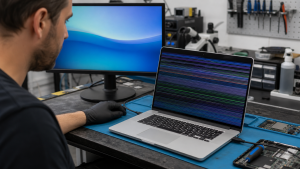
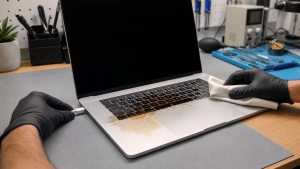
If your MacBook has been wet, has a swollen case or becomes unusually hot, stop charging and do not try another start. Otherwise, a suitable charger and one controlled power-button test can help distinguish a startup problem from a black display.
All repair guides
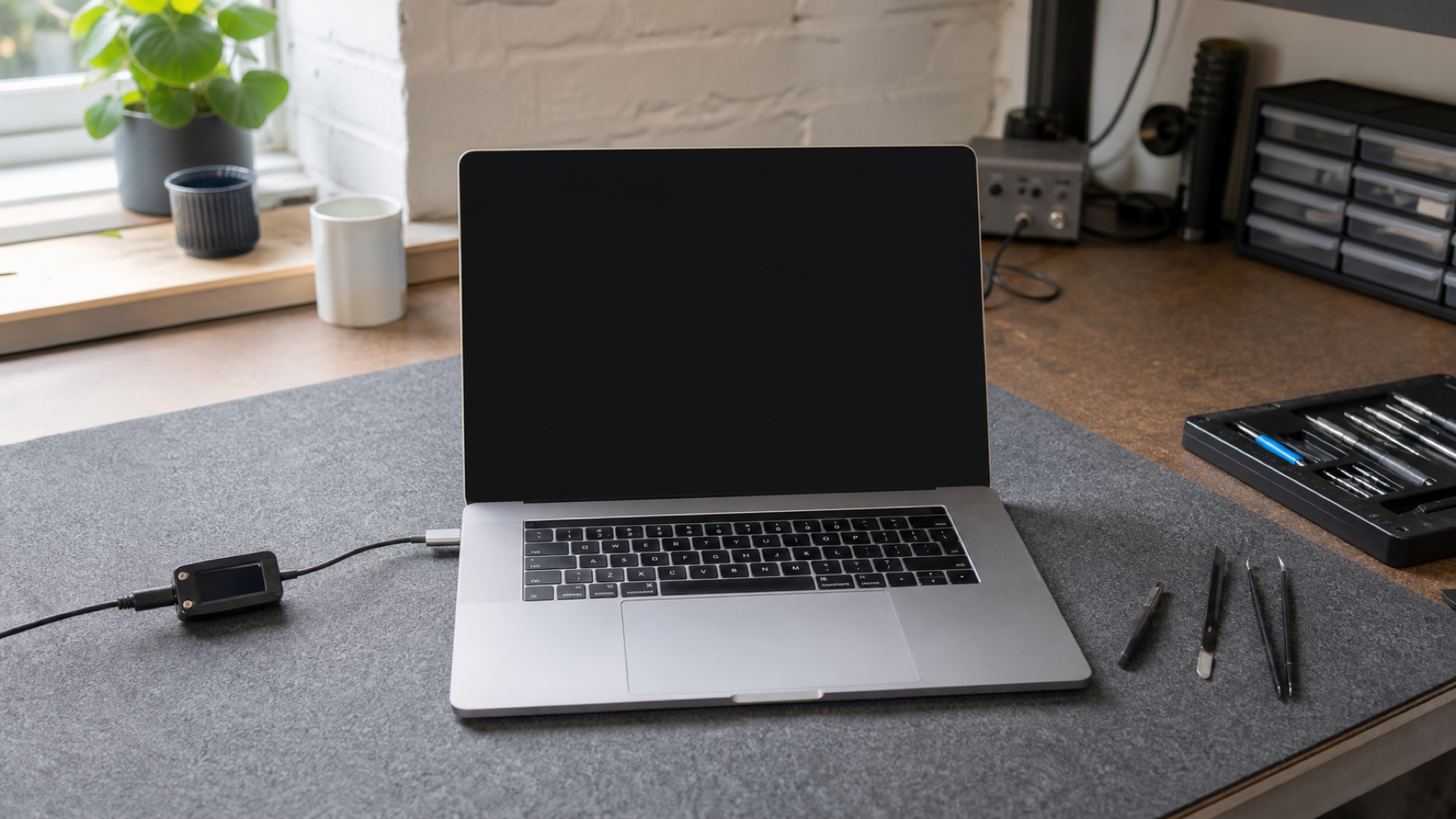

MacBook Won’t Turn On: Power, Display or Logic Board Fault?
In this article
Try Apple’s startup checks
- Check the power connection and use a known-good charger and cable suitable for the model.
- Disconnect accessories such as hubs and external drives.
- Press and hold the power button for about 10 seconds, then release it. On a MacBook with Touch ID, this is the Touch ID button.
- Press and release the power button normally.
These are Apple’s no-power checks. Repeating them indefinitely does not establish the cause. Avoid model-specific resets copied from a different Mac generation.
Is it running without an image?
Fan activity, keyboard response or a picture on an external display can suggest the Mac is running. Not every model has a fan, and no single sign is conclusive. If an external display works, see our black-screen and display-fault guide.
What needs checking next
The charger input, battery, power button, display and logic board can all be involved. A no-power symptom alone is not grounds for ordering a new motherboard. Different behaviour between charging ports is useful information to report.
At assessment, the relevant power path and board behaviour can be measured before a repair is proposed. Repair of the original board may be possible, depending on the damage.
Tell us if the files are the priority
A power or display repair does not automatically require erasing storage. Do not approve a restore or replacement board without discussing unbacked-up files. Send Fixfactor the model, symptoms and any spill history so the assessment can be planned around the outcome you need.