Your SSD worked yesterday. Today the laptop says there is no boot device, or an external drive has disappeared. If it holds files you need, do not initialise, format or reinstall anything just to make the drive appear again. First establish whether the computer can see the physical drive at all.
All repair guides

SSD Not Detected with Important Data: When to Stop Trying
In this article
This guide concerns a previously working SSD with data on it. A brand-new empty SSD that needs setting up is a different problem.
Missing from where?
“Not detected” can describe several situations with different recovery routes:
| What you can see | What it establishes |
|---|---|
| No drive letter or desktop icon, but the physical SSD appears in Disk Management or Disk Utility | The system can communicate with the device. A partition, file-system, mounting or encryption problem may prevent access. It does not establish that the SSD is healthy. |
| The internal SSD is listed in the BIOS or UEFI storage information, but the laptop will not start Windows | The firmware recognises the drive. The boot configuration or operating system may be involved, but a drive can identify itself while failing to read data. |
| The internal SSD is absent from the firmware’s storage list | The SSD, connection, power supply or motherboard needs investigation. Changing Windows settings will not repair a drive the hardware cannot communicate with. |
| An external enclosure appears, but no usable storage is shown | The USB bridge may be responding even when the SSD behind it is not. An enclosure’s name or LED is not proof that the drive itself works. |
If you already know how to open these screens, record the model name, reported capacity and exact message without changing settings. Do not alter storage-controller modes or security settings as an experiment. On an encrypted laptop, configuration changes can introduce a separate recovery-key requirement.
A limited check for an external SSD
If there has been no liquid damage, impact, unusual heat or repeated disconnection, one test with a known-good data cable and a direct USB port can rule out a hub or cable problem. Stop if the drive repeatedly disappears, freezes the computer or becomes unusually hot.
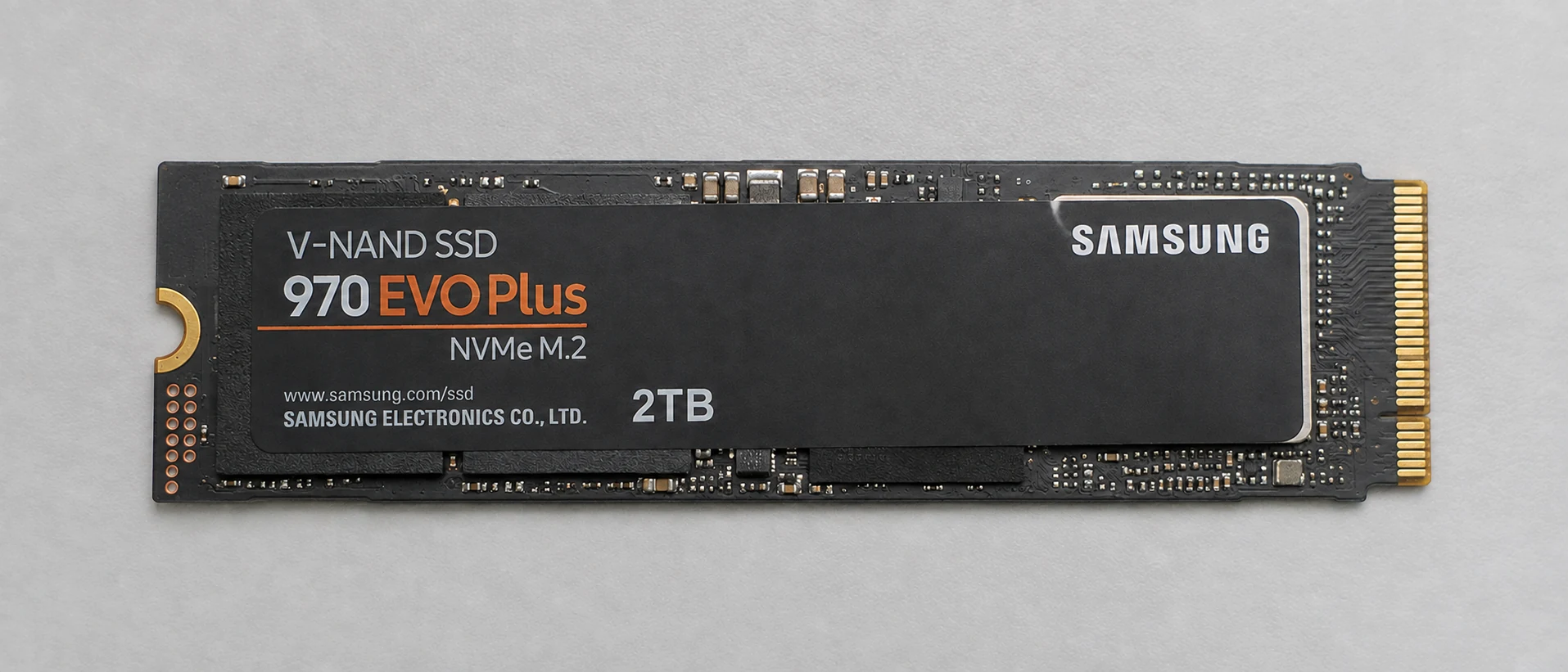
Do not buy an enclosure solely because the SSD fits its slot. M.2 describes a physical format; SATA and NVMe drives require compatible interfaces. Some external products also depend on their original bridge or encryption hardware. Keep the original enclosure and cable with the drive for assessment.
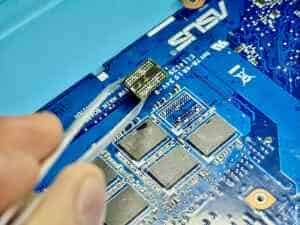
For an internal SSD, removing the drive or opening a laptop is not a necessary first step for the owner. On some devices the storage is soldered to the board. Our guide to soldered storage explains why that changes the recovery route.
If Windows asks to initialise or format it, cancel
That prompt means Windows cannot use the disk in its present state. It does not mean the disk is empty. Initialising creates disk metadata; formatting prepares a file system. Neither is a safe way to recover the original files.
For the same reason, do not run CHKDSK repair commands, Disk Utility First Aid, firmware updates or a fresh operating-system installation as your first response to an unstable SSD containing the only copy of your data. These are maintenance or repair actions, not a substitute for assessing a failing device and preserving readable data.
Manufacturer troubleshooting pages often cover both new-drive setup and faults. For example, Samsung’s SSD troubleshooting guidance distinguishes BIOS detection from detection in Windows. Follow instructions for the actual situation, rather than applying a new-drive setup step to a drive you need to recover.
It appeared again. Should you copy everything?
If the SSD stays connected and reads normally, copy the most important files to a different drive and check that the copies open. Do not use the suspect SSD as the destination.
If reading stalls, errors accumulate or the drive disconnects, stop. Repeated full scans and restarts may consume the remaining opportunity to read it. For irreplaceable data, assessment before another attempt is the more cautious choice. A recovery process may use controlled imaging and work from the copy rather than repeatedly testing the original.
Unlike a mechanical hard drive, an SSD will not warn you with head clicks or scraping. Silence is normal and tells you little about its condition. For a clicking mechanical drive, use our separate hard-drive failure guide.
Keep the encryption key and the original hardware
BitLocker is a separate access question from whether the SSD works. A recovery key cannot repair a failed drive, but it may be necessary to unlock data once the drive is readable. Our BitLocker recovery guide covers where to find it. Retrieve the key yourself; do not send your Microsoft account password.
A new SSD can make the laptop usable again while leaving the old files unresolved. Before agreeing to replacement, tell the repairer whether the data matters and ask to retain the original drive. With soldered or device-bound encrypted storage, retain the original motherboard too.
What to send us for an assessment
The useful starting information is the exact laptop or SSD model, whether the storage is internal or external, the last time it worked, any error message, and what has already been tried. Tell us which files matter and whether another copy exists.
We need to separate a cable or enclosure fault from storage, board and access problems before proposing a recovery method. Start with our data recovery service. If the data is already backed up and the aim is simply to get the laptop working, our computer repair service is the more relevant starting point.