BitLocker protects a Windows drive by encrypting it. That is good security, but it changes a data-recovery job: the technician must solve both the physical fault and the encryption. The 48-digit recovery key can be the difference between readable files and an encrypted volume nobody can open.
All repair guides


BitLocker and Data Recovery: Why the Recovery Key Decides Everything
In this article
Quick answer: find the BitLocker recovery key before a repair if you can. The key does not repair a damaged SSD, but it lets a recovery specialist unlock readable data without depending entirely on the original laptop. Without the key, recovery may depend on repairing that original machine far enough for it to unlock the drive.
Why BitLocker may be on when you never enabled it
On supported Windows devices, Device Encryption can turn on when the laptop is set up with a Microsoft account or a work or school account, and the recovery key is attached to that account. A local account does not enable Device Encryption automatically. Microsoft describes the current behaviour in Device Encryption in Windows.
This is why we ask about BitLocker even when a customer says, quite reasonably, “I never switched it on.” The useful question is whether the drive is encrypted and where its recovery information was stored.
What the TPM does
Many laptops use BitLocker with a Trusted Platform Module (TPM). During a normal start, the TPM helps Windows confirm that the boot environment has not been tampered with and releases the information needed to unlock the drive. A firmware change, security change or motherboard fault can make Windows ask for the recovery key instead.
The drive is not simply “locked to the motherboard” in every scenario. With the correct recovery key, a healthy BitLocker volume can be unlocked during recovery. Without the key, the original working TPM and startup path may become crucial.
Where to find the 48-digit recovery key
Write down the first eight digits of the recovery-key ID shown on screen. That ID helps match the laptop to the correct key if your account contains several.
- Personal Microsoft account: from another device go to aka.ms/myrecoverykey and sign in with the account used to set up the laptop.
- Work or school laptop: the key may be held in the organisation’s Microsoft Entra or Active Directory records. Contact the IT administrator before changing the hardware.
- Printed or saved copy: check paperwork, a USB drive or a text file saved somewhere other than the encrypted laptop.
- Someone else set up the laptop: the key may be attached to that person’s Microsoft account rather than yours.
Microsoft Support cannot retrieve, provide or recreate a missing BitLocker key. Its official recovery-key instructions list the supported places to check.
What the recovery key can and cannot do
The key can unlock encrypted data that is still readable. It cannot repair a failed controller, damaged NAND, liquid corrosion or a drive that is no longer detected. Those faults need recovery work first; the key is then used when the encrypted volume becomes accessible.
Equally, a healthy-looking drive without the correct key is not a successful recovery. Copying encrypted sectors is only useful if there is a credible way to decrypt them.
Without the key, the original laptop matters more
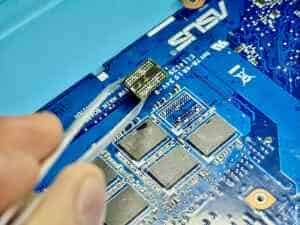
If the original board can still complete its trusted startup, it may unlock the drive normally. When the board is faulty, we may repair power, firmware or damaged circuitry far enough to reach that point. This can be the only realistic route on a soldered-storage laptop.
Our take: do not authorise a motherboard replacement until the data question is answered. Replacing the board can restore the laptop while leaving the encrypted files on the original board. Ask the repairer to separate the device-repair quote from the data-recovery plan.
If the laptop has already failed
- Stop repeated restart attempts if the drive is clicking, disappearing, overheating or the laptop has liquid damage.
- Do not reinstall Windows, initialise the drive or choose “Remove everything”.
- Check the recovery-key ID and search the relevant account from another device.
- Tell us whether the machine belongs to a company or school; the administrator may hold the key.
We assess the storage, encryption and motherboard together, then give you the recovery route and price before work starts. See laptop data recovery or read how the process changes with soldered storage.
Frequently asked questions
Can BitLocker be bypassed?
No legitimate recovery method bypasses correctly implemented BitLocker encryption. Recovery depends on a valid key or on the original device unlocking the volume through its configured protector.
Will changing the screen or battery trigger BitLocker?
Ordinary part replacement does not normally erase the key, but firmware, security and motherboard changes can trigger recovery mode. Find the key before any major repair so an unexpected prompt does not stop testing.
Does entering the recovery key erase data?
Entering the correct key unlocks the volume; it does not erase it. Resetting or reinstalling Windows is different and can remove files, so do not choose those options when recovery is the priority.