We run a data recovery lab, so take this in the spirit it is meant: we would rather you never needed us. Recovery is expensive, stressful and never guaranteed. A backup that runs without you remembering it is a much better plan.
All repair guides
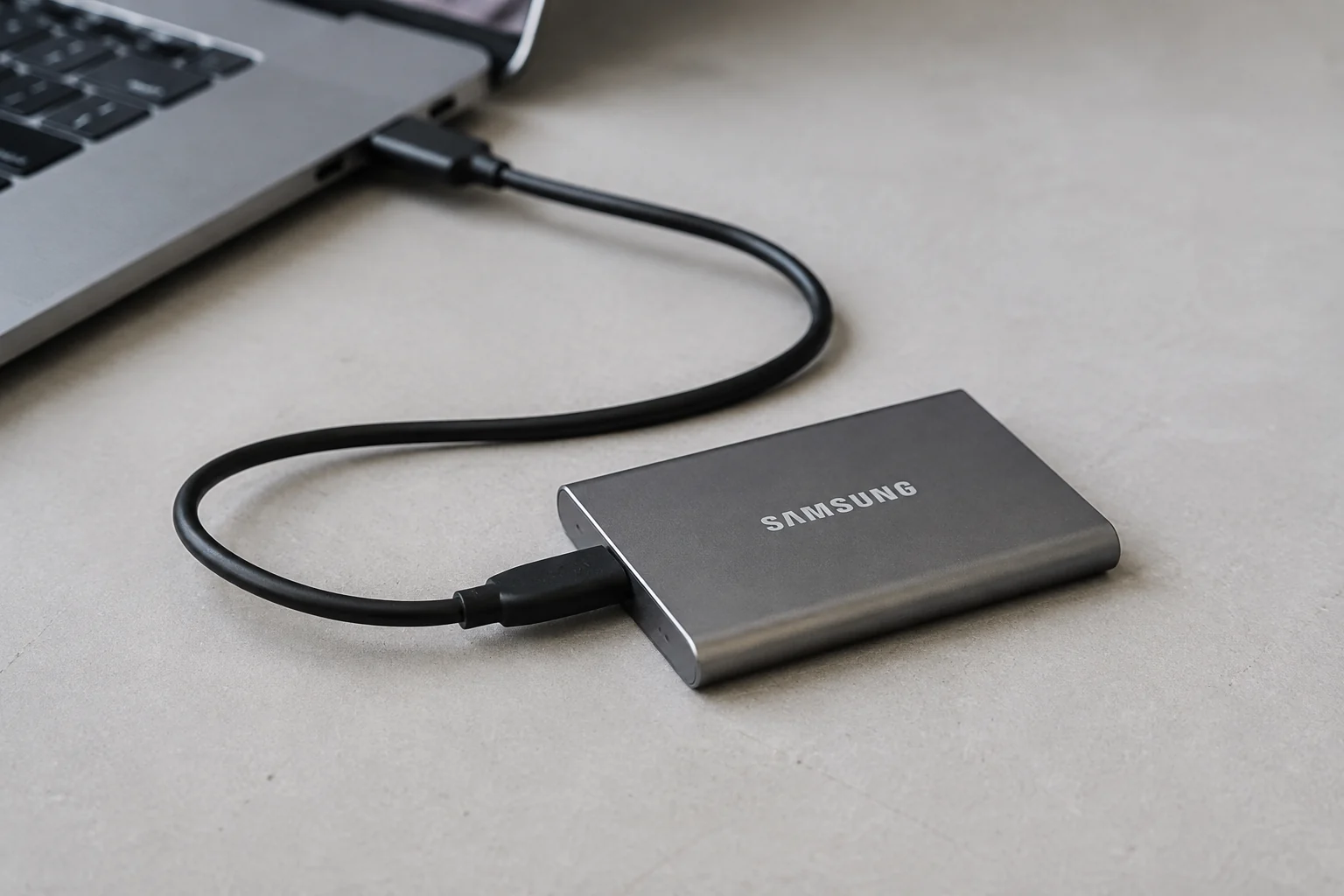

How to Back Up Your Laptop: the 3-2-1 Rule
In this article
Quick answer: keep the laptop copy, one automatic cloud copy and one separate copy on an external drive. Check that you can open or restore a file from each backup. That is the useful, everyday version of the 3-2-1 rule.
What the 3-2-1 rule actually means
Keep three copies of anything that matters: the working copy and two backups. Store them on two different types of storage, such as the laptop and an external drive, with one copy off-site in a cloud service or at another address.
The point is not the numbers for their own sake. It is to avoid one event taking every copy with it. A permanently connected USB drive can fail in the same power surge as the laptop. A synced folder can copy an accidental deletion. A laptop and its backup drive can be stolen from the same bag.
The simplest setup we would use at home
- Windows: use OneDrive folder backup or another reputable cloud backup for Desktop, Documents and Pictures, then add an external drive for a second copy. Microsoft explains the current Windows Backup setup in its Windows Backup guide.
- Mac: use iCloud or another cloud service for the files you need everywhere, then let Time Machine back up the Mac to a dedicated external drive. Apple recommends a Time Machine disk with at least twice the Mac’s storage capacity in its Time Machine instructions.
- Photos and specialist software: check where the original files, catalogues and project libraries actually live. A cloud icon next to one folder does not mean every file on the computer is protected.
Sync is useful, but it is not the whole backup
OneDrive, iCloud Drive and Google Drive are excellent at keeping current files available on more than one device. They can also synchronise mistakes. If a file is deleted, overwritten or encrypted by malware, that change may travel to the cloud copy.
Version history and recycle bins help, but they have limits. That is why we still want a separate backup with older versions, ideally one that is not permanently connected. For most people, automatic cloud storage plus Time Machine or a Windows external-drive backup is a sensible balance between protection and effort.
Test one restore before you trust the system
A green tick tells you that a job ran. It does not prove the file you need is present and readable. Once a month, choose one document or photo, restore an older copy to a temporary folder and open it. For a business machine, test a representative document, an email archive or a small application dataset as well.
Choose a backup process that runs automatically, reports failures and lets you restore an older version. Test the restore, rather than assuming a successful sync covers everything.
Save the encryption recovery keys as well
A backup protects the files. A recovery key may protect your route back into the original drive. Windows Device Encryption or BitLocker can be enabled on a laptop without the owner thinking of it as a separate setup step. Check that the 48-digit key is stored in the correct Microsoft, work or school account; our BitLocker and data recovery guide explains where to look.
On a Mac using FileVault, keep the recovery route somewhere other than the encrypted Mac. Apple gives current guidance on storing the FileVault recovery key.
If the laptop has already failed
Do not create a backup by repeatedly forcing a failing drive to boot. Do not reinstall Windows or erase the Mac to see whether it helps. If the files matter, stop and decide what has priority: recovering the data or repairing the machine. Tell the technician that before anyone changes the storage or motherboard.
Start with laptop data recovery assessment and tell us what is missing. The fault and encryption state affect the available options; recoverability cannot always be established before diagnostic work.
Frequently asked questions
Is OneDrive or iCloud a backup?
It is a valuable off-site copy of the files and folders you have selected, but we would not make it the only copy. Add a separate backup that keeps older versions and check that all important folders are included.
Should the external backup drive stay connected?
Only if the backup system needs it continuously and you accept the shared risk. For a simple home setup, connect it for scheduled backups, let the job finish and eject it. A second rotating drive is even better for irreplaceable work.
How often should I back up?
Match the schedule to what you can afford to lose. If losing today’s work would hurt, back up automatically every day. If the laptop stores business records, photographs or active projects, do not rely on a monthly manual copy.