Vibration with a black screen suggests the phone has power, but does not prove the display is the only fault. After liquid exposure, swelling or unusual heat, stop testing and charging. Otherwise, try one model-appropriate forced restart before arranging assessment.
All repair guides
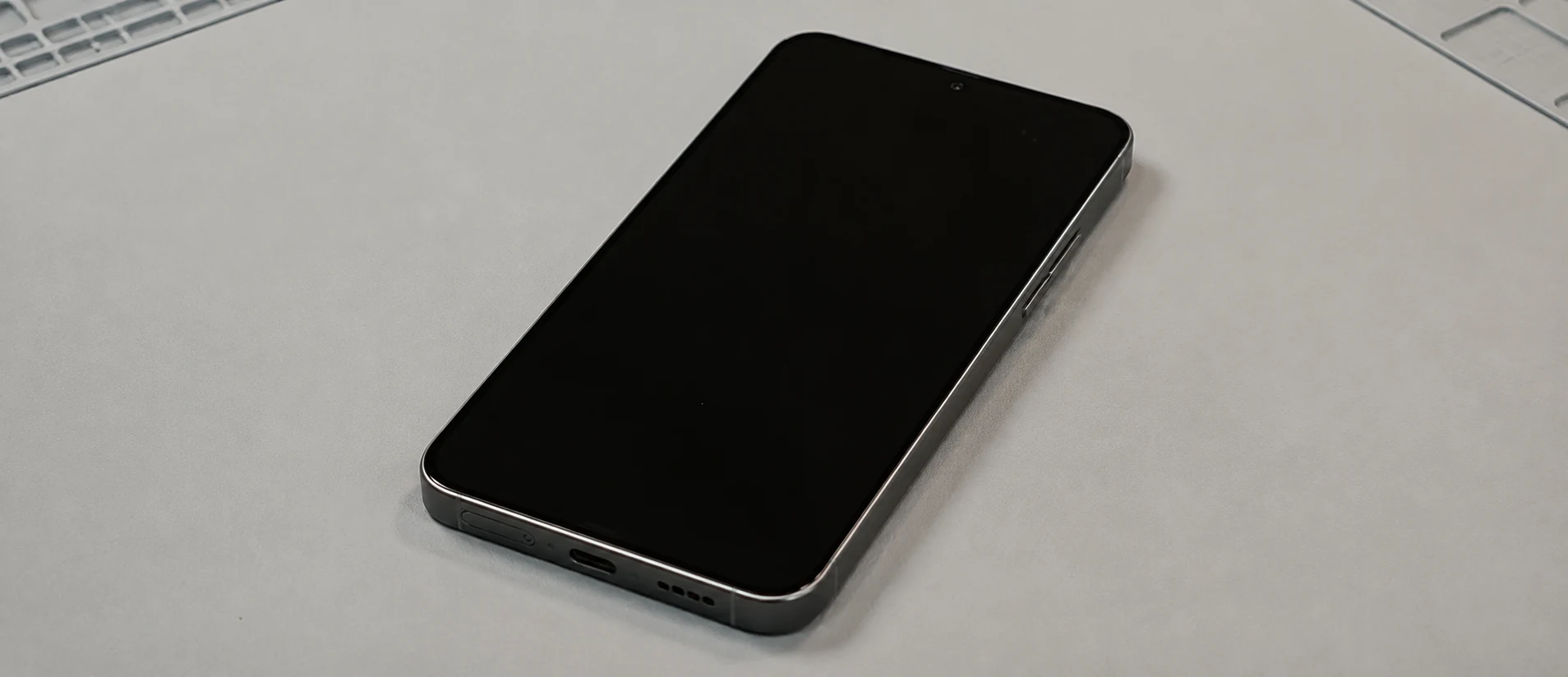

Samsung Phone Black Screen but Still Vibrates: Display or Motherboard?
In this article
Vibration is useful evidence, not a complete diagnosis
A vibration tells us that the phone responded to an event: a button combination, charger, call, notification or restart. It does not prove that the operating system finished booting, that touch works or that the motherboard is completely healthy.
Start by noting exactly what the phone does:
- does it ring when called from another phone?
- does an alarm or notification sound at the expected time?
- does it vibrate only when the charger is connected?
- did the screen fail immediately after a drop or liquid exposure?
- can you see a brief flash, coloured line or image at one angle?
- does a computer react when the phone is connected?
These observations help separate “no image” from “no boot”. Neither should be confused with proof that a particular part must be replaced.
Safe checks you can do
- Remove the case. Make sure it is not holding a side button down or hiding impact damage around the frame.
- Inspect the phone and charging port. Stop if the phone is bent, swollen, unusually hot, wet or smells burnt. Do not keep charging a damaged device.
- Force-restart it once. On many current Galaxy models, Samsung instructs users to hold the Side key and Volume Down together for more than seven seconds. Button combinations can vary, so check the support instructions for the exact model.
- Call the phone and listen. Ringing or vibrating strengthens the case for a display-path fault, but does not rule out a board fault that affects only the screen.
- Try a known-good compatible charger if there is no damage or liquid. A deeply discharged phone may take time to respond. Stop if it becomes hot without showing a normal result.
Do not choose Wipe data/factory reset in Android Recovery. It erases the phone and does not prove whether the OLED panel, display connector or display circuit is working. If the files are not backed up, make the data priority clear before any software reset or motherboard replacement.
What the symptom may indicate
| What you notice | Useful diagnostic direction |
|---|---|
| Phone rings and vibrates normally, but shows no image | Display assembly, display connector or its power and signal path should be tested first. |
| Screen failed immediately after a drop | An internally damaged OLED can stay completely black even when the outer glass looks intact. |
| Brief flash, coloured line or image appears during restart | Display-panel or connection damage is more likely, although board-level display faults remain possible. |
| Only a charging vibration occurs, with no calls or normal sounds | The phone may be deeply discharged, stuck during boot or affected by a wider power or board fault. |
| Black screen followed liquid exposure | Display, connector and motherboard corrosion all need consideration; repeated charging adds risk. |
| Known-good screen also remains black | Connector damage, missing display power, signal failure or another motherboard fault moves higher on the list. |
Why a torch test is unreliable on many Samsung phones
Older LCD troubleshooting often suggests shining a torch at the screen to look for a faint image from a failed backlight. Many Samsung Galaxy phones use OLED displays. OLED pixels emit their own light and do not use a separate backlight, as Samsung Display explains in its technical overview.
A faint-image torch test therefore cannot clear or condemn a modern Galaxy OLED in the way it might help with an LCD. A black OLED can come from panel damage, loss of display power or missing image data. A compatible test display and electrical measurements provide more useful evidence.
Can you reach the data through an external screen?
On a compatible Galaxy, a USB-C to HDMI hub, monitor, keyboard and mouse may let you unlock the phone and use Smart Switch without repairing the built-in display first. Samsung’s documented procedure requires Android 12 or later and a phone that supports DisplayPort. A USB-C socket alone does not establish compatibility, so check the exact model before buying an adapter.
This route still requires the phone to start and accept your unlock credential and connection permissions. After a restart, expect to need the PIN, password or pattern rather than a fingerprint. Do not make repeated blind guesses. If external access is unavailable, a temporary test display may be needed to authorise a backup.
Follow Samsung’s broken-screen transfer procedure for the supported setup. Stop if the phone is wet, swollen or unusually hot.
How we separate the display from the motherboard
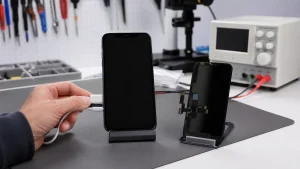
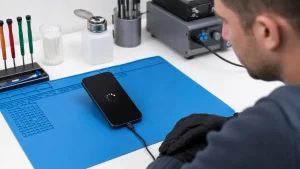
We begin with the history and signs of life, then inspect the frame, display connection and liquid indicators where accessible. A controlled test with a compatible known-good display is one of the clearest ways to separate a failed screen from a phone that is not producing a usable image signal.
If the test display also stays black, we inspect the connector under magnification and measure the display power path. Impact can damage a connector or tiny components around it. Liquid can corrode the same area. A board may boot, vibrate and handle calls while one circuit supplying or communicating with the display has failed.
Only after those checks do we know whether the sensible route is a screen replacement, connector repair, component-level motherboard work or stopping because the damage and value do not justify further repair.
When to arrange a repair
Book an assessment if one force restart does not restore the image, the screen failed after impact, the phone rings with no display, liquid is involved or the device becomes hot. Stop repeated button combinations and charging once the useful observations have been recorded.
See our Samsung Galaxy repair service. For the same symptom on an iPhone, read iPhone Black Screen: Is It the Display or the Phone?. If the original board or files are the priority, continue with phone motherboard repair versus data recovery.
Frequently asked questions
Will a new screen definitely fix a black Samsung display?
No. It is a common result after impact, but a damaged connector, missing display power, liquid or a motherboard fault can leave a known-good screen black too. Testing before quoting avoids replacing the wrong part.
Does a force restart delete my data?
A normal forced restart should not erase user data. A factory reset or the Wipe data option in recovery does. Stop before selecting an unfamiliar recovery-menu command.
Technical references: Samsung UK on inspection and forced restart steps, Samsung’s blank-display checks, and Samsung Display on why OLED does not use a backlight.