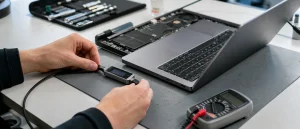
The laptop is charging through its USB-C dock, the mouse works, but the monitor says “No signal”. That does not establish a broken laptop port. Charging, USB peripherals and video use different capabilities, and one can work while another does not.
All repair guides

USB-C Dock Charges the Laptop but the Monitor Has No Signal
In this article
The most useful first question is whether this exact laptop, dock, cable and monitor combination has ever produced a picture.
If this setup has never worked
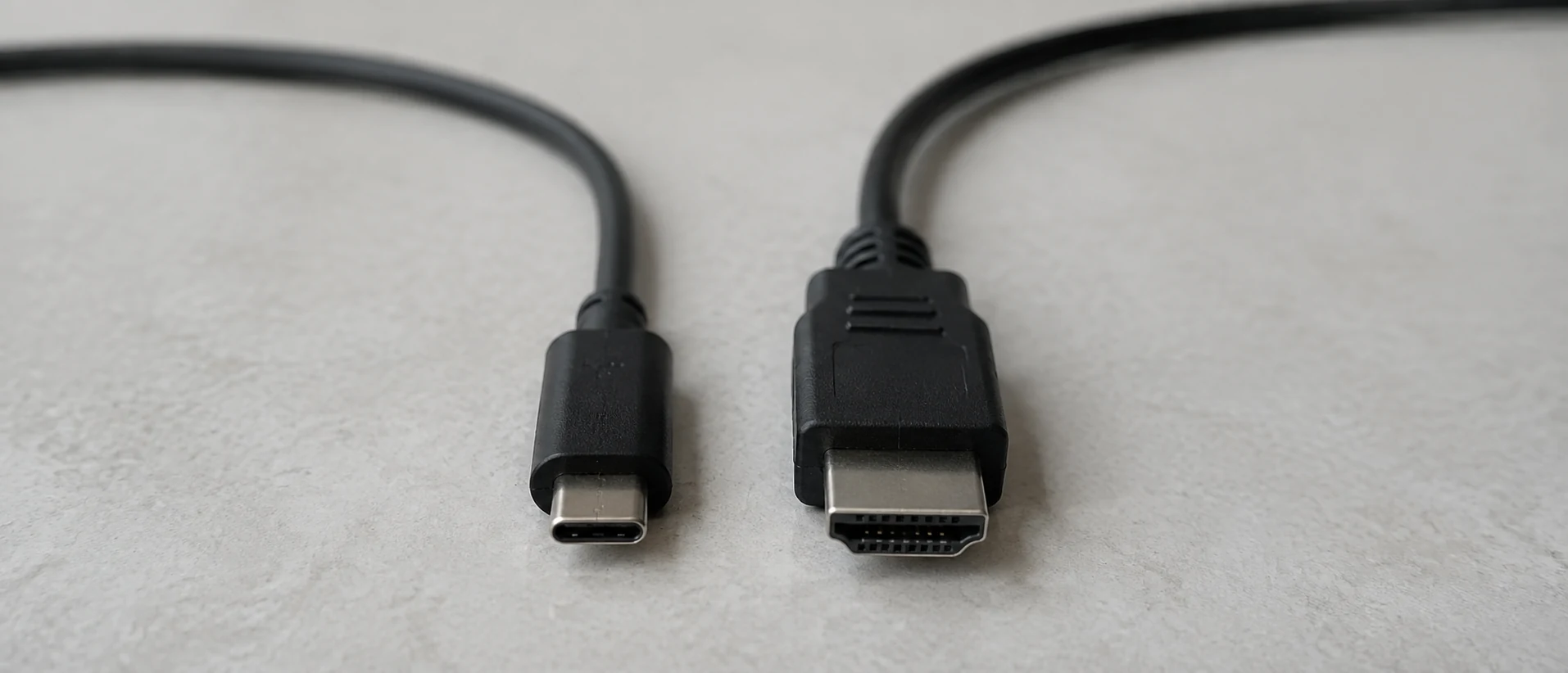
Check the laptop’s specification for the port you are using. A USB-C socket may support charging and data without supporting a native video output. An ordinary USB-C display adapter generally needs DisplayPort Alt Mode; a Thunderbolt dock has its own host requirements and may offer limited or no fallback on a different connection.
The cable matters too. A cable that charges the laptop is not necessarily suitable for its dock’s video connection. Use the dock manufacturer’s specified host cable and check that it is connected to the port marked for the host computer, rather than a power-input or peripheral port.
Microsoft’s USB-C troubleshooting guide describes the separate compatibility requirements behind limited display and Thunderbolt connections. There is no universal Windows switch that adds a missing hardware capability.
A DisplayLink dock is a different case: it uses USB graphics software rather than relying only on native video output. Check the exact dock’s documentation and its official software requirements. Do not install a collection of driver-updater utilities to see which one helps.
If the same setup worked before
Note what changed: a replacement cable, a different USB-C socket, an extra monitor, a system update, or a knock to the connector. Then change one part of the setup at a time:
- Select the monitor’s actual input. HDMI 1, HDMI 2, DisplayPort and USB-C are separate inputs. An automatic input search can settle on the wrong one.
- Test one monitor. Disconnect the second display and other non-essential dock accessories. If one display works, check the supported display count, resolution and refresh rate before assuming a fault.
- Restart the connection safely. Save your work and safely eject any storage attached to the dock. Disconnect the dock from the laptop, power-cycle the dock and monitor according to their instructions, then reconnect.
- Bypass the dock where possible. Try a known-good direct HDMI or supported USB-C display connection. This checks another route to the monitor; it does not prove that every function of the original USB-C port is healthy.
- Compare with known-compatible equipment. Test the monitor and display cable with another source, or the dock with a laptop known to support it. A second incompatible laptop gives an inconclusive result.
For a connection that failed after an update, use the laptop and dock manufacturers’ support pages for the exact models. Follow their update instructions with stable power. Do not flash unrelated dock firmware or change BIOS settings at random.
Two monitors can expose a compatibility limit
A dock advertised for two or three screens cannot give every laptop that capability. Supported display count and modes depend on the computer, connection and operating system as well as the dock. The figures on a dock’s box may assume a particular host or software setup.
For a Mac, check Apple’s specification for the exact model and its supported external displays. For any laptop, reducing the test to one display at a supported mode is more useful than repeatedly swapping identical adapters. Once one screen works, add the other screen and settings back individually.
When a hardware inspection makes sense
A loose port, visible damage, unusual connector heat or a picture that drops when the plug moves warrants inspection. Do not hold the cable at an angle to keep the screen alive. Stop using a damaged or overheating connection.
If compatible equipment works elsewhere but consistently fails on this laptop, we can investigate the connector and the circuitry serving it. Depending on the design, a port can sit on a replaceable board or require soldering work. A charging light alone cannot settle which repair is needed.
Bring the dock, its power supply and host cable with the laptop. Testing only the laptop can miss the combination that causes the fault. Include the monitor model and the resolution or number of screens you are trying to use.
Our computer repair service can assess a suspected hardware fault. If charging is the part that has stopped working, see laptop USB-C charging faults. If the built-in screen is also black, start with a laptop that is on but has no picture.
Further references: Apple’s guidance on connecting displays to a Mac and official DisplayLink software.