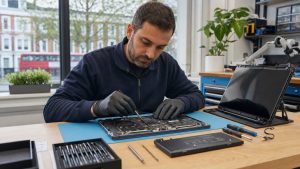
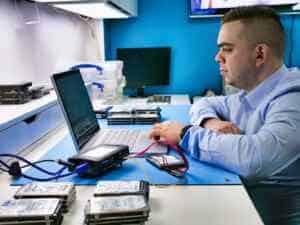
Before optimisation: if the slowdown comes with read errors, missing files or unusual drive noises, protect the data first. Avoid scans and reinstalls until the drive has been assessed.
All repair guides
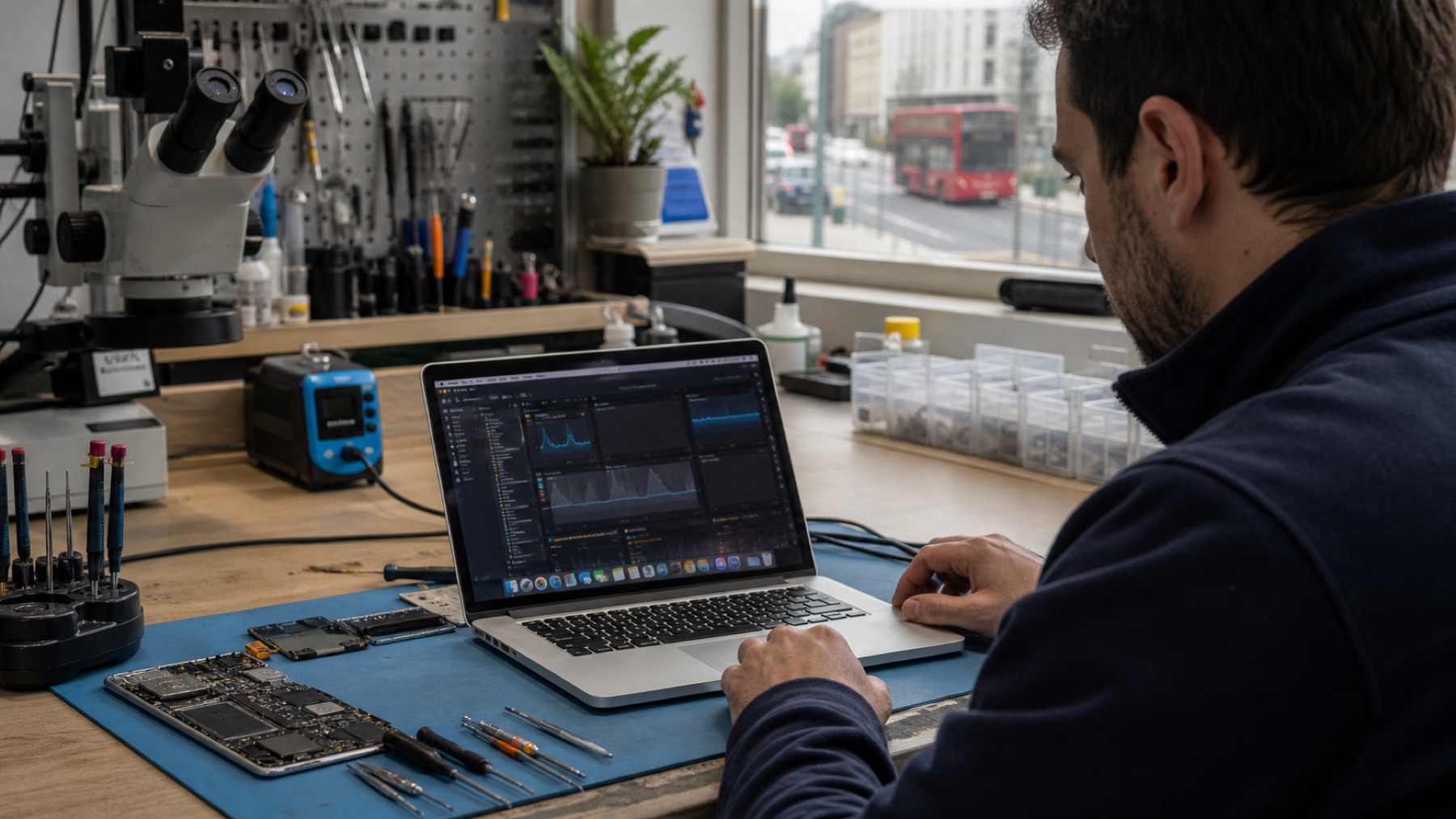

Why Is My Mac Running Slow? Five Checks Before You Blame Its Age
In this article
A slow Mac is rarely an old Mac problem - it is usually a specific, findable problem wearing an “ageing computer” costume. Low free storage, a process eating the CPU, a worn battery, blocked cooling or a failing drive all produce the same vague sluggishness. The checks below separate the housekeeping issues you can fix in an evening from the faults worth a workshop visit.
Quick answer: check free storage first (macOS needs breathing room - keep roughly 10 to 15% free), then open Activity Monitor and look at the CPU and Memory tabs for what is actually consuming the machine. If storage is fine and no process explains it, the likely suspects are thermal throttling from blocked cooling, a worn battery, or - on older Intel machines - hardware that has simply been outpaced. Each has a different fix, which is why guessing is expensive.
Check one: free storage
macOS constantly writes temporary files, and when the disk runs nearly full, everything slows - on Macs with heavy memory use, the system also swaps memory to disk, so a full disk strangles RAM too. Check Settings → General → Storage. If you are under about 10% free, clear space (the built-in recommendations are decent) and reassess before blaming anything else. A Mac that “got slow gradually” very often just got full gradually.
Check two: what is actually running
In Activity Monitor, check the CPU tab for an app or process using sustained resources, then the Memory tab while the slowdown occurs. Sustained memory pressure can point to a workload bottleneck; compare it after closing an unusually demanding app. It does not prove that the installed memory is faulty or that replacement is the only answer.
Check three: heat
A Mac that slows down during work - fans loud, base hot, speed returning after a rest - is protecting itself by throttling. Years of dust on the heatsink, vents blocked by soft surfaces, or dried-out thermal paste on older machines all cause it. This one is a straightforward workshop fix: an internal clean and thermal service restores the cooling headroom, and with it the speed.
Check four: the battery (yes, really)
If slowness accompanies shutdowns or unreliable battery behaviour, check Battery settings and investigate those symptoms together. Apple’s cycle limits vary by model; neither a cycle count nor Service Recommended alone establishes the cause of a slowdown.
Check five: the drive - the urgent one
Repeated read errors, disappearing files or a mechanical drive making unusual noises need a different response from ordinary slowness. Avoid repeated boots, repair utilities and full-drive scans if important files are not backed up. Discuss the recovery options before putting more load on the drive.
When it really is age
If the workload has outgrown the machine, compare the cost and limits of any proposed improvement with a suitable replacement. Check support for the exact model. A cooling service will not provide more memory, and a newer laptop is unnecessary if one misbehaving application is the cause.
Frequently asked questions
Will reinstalling macOS speed my Mac up?
Occasionally - when the slowdown is software rot. But a reinstall on a full disk, hot machine or failing drive fixes nothing and wastes an afternoon. Run the checks above first; reinstall as a considered step, not a ritual.
Can you add RAM to my MacBook?
On modern MacBooks the memory is part of the board, so no - the practical answers are workload management and buying enough RAM upfront next time. Some older models and many iMacs do take upgrades; ask with your exact model and we will give you a straight answer.
Do “Mac cleaner” apps help?
Mostly no. macOS manages itself well; the built-in storage tools cover the useful part. Several cleaner apps cause more trouble than they cure - and none of them fix heat, batteries or failing drives.
Nothing above explains it. Now what?
Then it is diagnostic territory - intermittent hardware faults can masquerade as slowness. A MacBook diagnostic (or an iMac diagnostic) names the cause and the cost before you commit to anything.